Why engineering teams must understand design & no-code builders now
In 2026, the world of software development is changing faster than ever. For engineering teams, it’s no longer enough to just know how to write code. You also need to understand the tools that help design and create apps without code.

This includes powerful design and graphics software and new ways to build applications using "no-code" builders. These tools are becoming super important for making your team work better and faster.
When we talk about "design and graphics software," we’re looking beyond simple drawing programs. We mean tools like Figma, which is used for creating user interfaces and user experiences. We also mean new AI tools that can help with design tasks or even create whole ai for presentations. In fact, many designers now use an average of 7 different AI tools weekly, which shows how big a role AI plays in design today. On the other hand, "no-code application builders" are platforms that let you build full applications using visual tools, not by writing lines of code. A good example is a bubble no-code app builder, which allows teams to make working apps much faster.
The reason these tools are so important for engineering teams boils down to a few key problems. First, there’s productivity. How can teams build things quicker and get them to users faster? Second, there’s the handover between designers and engineers. Often, a design team creates something, and then the engineering team has to build it from scratch. This can cause delays and misunderstandings. Finally, fast prototyping is key. Being able to quickly show a working version of an idea helps everyone see what works and what doesn’t before too much time is spent on deep coding.
With AI tools becoming a huge part of software engineering and design, these changes are even more critical. Many professionals believe AI will be essential for their success, with a large number of developers using AI tools daily in 2026 to speed up their work considerably, making AI a powerful ai problem solver.
This article will help you understand all this. We will give you a clear, evidence-backed plan to choose the right design and no-code tools. You’ll also learn how to fit these tools smoothly into your team’s everyday work. This way, your engineering team can stay ahead and build amazing things even faster.
Stay current with the latest advancements in AI and technology.
The AI Newsletter Worth Reading
To truly get ahead, engineering teams need to know the different kinds of design and no-code tools out there. These tools are not one-size-fits-all. They each have special uses that help different team members do their jobs better.
Overview: Categories of design & graphics software and who uses them
Let’s break down the main types of design and graphics software you might encounter. Understanding these categories helps you see how they fit into your team’s work.
Types of Design & Graphics Software
-
Vector Editors: These tools are for creating images using lines and curves, called vectors. Think of logos, icons, and illustrations. When you zoom in, vector graphics stay sharp and clear.
- Examples: Adobe Illustrator, Affinity Designer.
- Who uses them: Graphic designers, brand specialists. They use these for consistent branding across different sizes, from a small app icon to a large billboard.
-
Raster Editors: These tools work with images made of tiny dots called pixels. Photos are a good example of raster graphics. When you zoom in too much, pixel-based images can look blurry.
- Examples: Adobe Photoshop, GIMP.
- Who uses them: Photographers, web designers for image editing, marketing teams for creating social media visuals.
-
UI/UX Design Tools: UI stands for User Interface, which is what people see and click. UX stands for User Experience, which is how people feel when they use a product. These tools help design how an app or website looks and works. Figma, for example, is a very popular tool in this space, with many designers using it for creating design systems and prototypes in 2026. In fact, Figma has nearly complete market dominance for design systems according to a 2026 report on design systems, showing its widespread use. Over 4 million paying customers use Figma, making it a leader in the design tool market.
- Examples: Figma, Sketch, Adobe XD.
- Who uses them: UI/UX designers, product managers, and increasingly, engineers who want to understand the design more deeply. Engineers might use these to view designs, grab design information, or even export parts for code.
-
Prototyping Platforms: These are often part of UI/UX tools or can be standalone. They let you create working models (prototypes) of an app or website. You can click through them to see how the final product might feel, without writing much code. This is very useful for testing ideas quickly.
- Examples: InVision, Axure RP (though many UI/UX tools now have strong prototyping features).
- Who uses them: Designers, product managers for user testing, and even sales teams to show clients how a future product could work. Engineering teams find these helpful to visualize flows and understand complex interactions before coding begins.
-
Motion & 3D Design Tools: These tools are for creating animations, videos, and three-dimensional graphics. They add life to user interfaces and help create engaging experiences.
- Examples: Adobe After Effects, Cinema 4D.
- Who uses them: Motion graphic designers, animators, and sometimes marketing teams for eye-catching content.
Who Uses What Across the Team
It’s not just designers who touch these tools. In 2026, many different roles on an engineering team interact with design and graphics software:
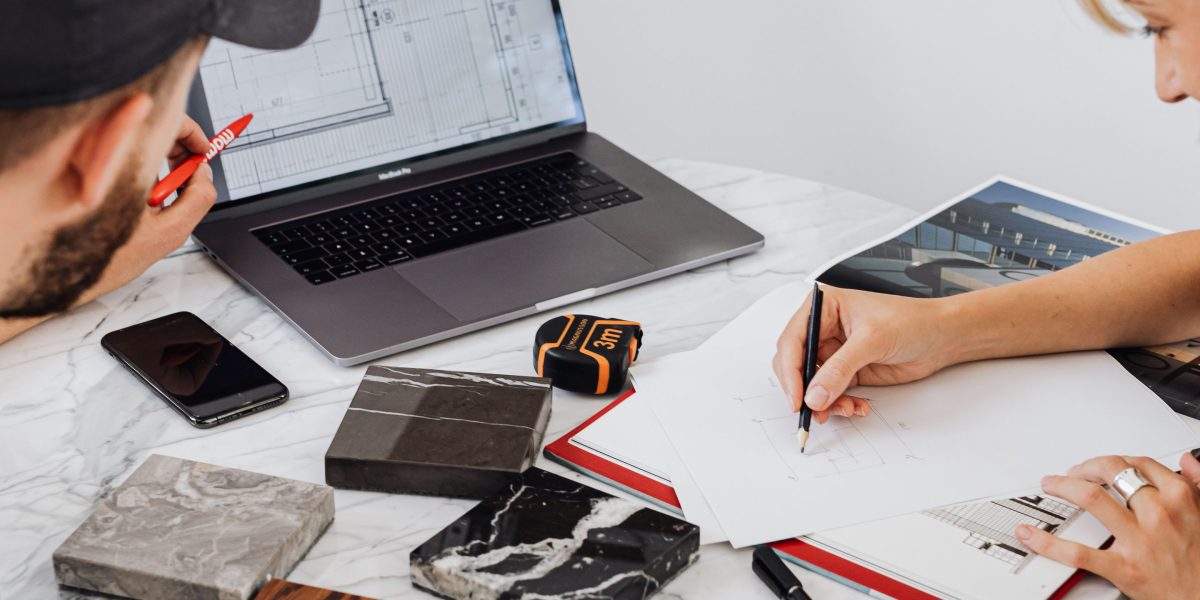
- Designers (UI/UX, Graphic, Motion): These are the main users, focusing on visual appeal and user interaction. They might use Figma for app interfaces or Adobe products for illustrations and photos. They are often the ones creating the initial mock-ups and prototypes.
- Engineers: While engineers traditionally write code, they often need to check design files to make sure their code matches the design perfectly. Some engineers even start prototyping in design tools or directly in code. The trend of people designing directly in code and using prototyping tools is growing, especially with the rise of AI coding tools. This helps bridge the gap between design and development. Tools that let you export code from design are becoming more common.
- Product Managers (PMs): PMs use design tools to review mock-ups, gather feedback from stakeholders, and communicate product vision. They often look at prototypes to understand how a user will move through an application.
- Marketing Teams: They use design tools for creating promotional materials, banners, and ai for presentations. They might also work with raster images for campaigns.
Generalist vs. Specialist Tools
Teams often face a choice: should they use one tool that does many things (a generalist) or several tools, each specializing in one area (specialists)?
- Generalist Tools: These tools try to do a bit of everything, like some platforms that combine UI design, prototyping, and even hand-off features. They can be good for small teams or projects that need speed, keeping everything in one place.
- Specialist Tools: These are tools that are super good at one specific thing, like a powerful vector editor or a dedicated 3D modeling program. They are often chosen for projects where quality and advanced features in one area are most important. For example, a gaming company might invest heavily in specialist 3D design software.
The best choice depends on your team’s needs, budget, and how much different team members need to work together on the same files. For instance, while Figma is dominant for design systems, its strength is its collaborative nature, making it a great generalist tool for UI/UX. However, for specialized tasks like heavy photo editing or complex 3D modeling, separate specialist software would be needed.
No matter the choice, knowing what each type of design and graphics software offers helps engineering teams work smarter. It improves how designers and engineers communicate, leading to better products built faster.
The world of design tools is always changing, and many businesses are using AI design tools in 2026. In fact, 88% of businesses report using AI design tools in some way, with 61% using them regularly or occasionally, showing how important they are becoming for everyone involved in design. To truly understand the full scope of modern software development, it is helpful to also know about advanced concepts in engineering. Learn how to identify interesting engineering practices in today’s fast-moving tech landscape.To truly get ahead, engineering teams need to know the different kinds of design and no-code tools out there. These tools are not one-size-fits-all. They each have special uses that help different team members do their jobs better.
Overview: Categories of design & graphics software and who uses them
Let’s break down the main types of design and graphics software you might encounter. Understanding these categories helps you see how they fit into your team’s work.
Types of Design & Graphics Software
-
Vector Editors: These tools are for creating images using lines and curves, called vectors. Think of logos, icons, and illustrations. When you zoom in, vector graphics stay sharp and clear.
- Examples: Adobe Illustrator, Affinity Designer.
- Who uses them: Graphic designers, brand specialists. They use these for consistent branding across different sizes, from a small app icon to a large billboard.
-
Raster Editors: These tools work with images made of tiny dots called pixels. Photos are a good example of raster graphics. When you zoom in too much, pixel-based images can look blurry.
- Examples: Adobe Photoshop, GIMP.
- Who uses them: Photographers, web designers for image editing, marketing teams for creating social media visuals.
-
UI/UX Design Tools: UI stands for User Interface, which is what people see and click. UX stands for User Experience, which is how people feel when they use a product. These tools help design how an app or website looks and works. Figma, for example, is a very popular tool in this space, with many designers using it for creating design systems and prototypes in 2026. In fact, Figma has nearly complete market dominance for design systems according to a 2026 report on design systems, showing its widespread use. Over 4 million paying customers use Figma, making it a leader in the design tool market.
- Examples: Figma, Sketch, Adobe XD.
- Who uses them: UI/UX designers, product managers, and increasingly, engineers who want to understand the design more deeply. Engineers might use these to view designs, grab design information, or even export parts for code.
-
Prototyping Platforms: These are often part of UI/UX tools or can be standalone. They let you create working models (prototypes) of an app or website. You can click through them to see how the final product might feel, without writing much code. This is very useful for testing ideas quickly.
- Examples: InVision, Axure RP (though many UI/UX tools now have strong prototyping features).
- Who uses them: Designers, product managers for user testing, and even sales teams to show clients how a future product could work. Engineering teams find these helpful to visualize flows and understand complex interactions before coding begins.
-
Motion & 3D Design Tools: These tools are for creating animations, videos, and three-dimensional graphics. They add life to user interfaces and help create engaging experiences.
- Examples: Adobe After Effects, Cinema 4D.
- Who uses them: Motion graphic designers, animators, and sometimes marketing teams for eye-catching content.
Who Uses What Across the Team
It’s not just designers who touch these tools. In 2026, many different roles on an engineering team interact with design and graphics software:
- Designers (UI/UX, Graphic, Motion): These are the main users, focusing on visual appeal and user interaction. They might use Figma for app interfaces or Adobe products for illustrations and photos. They are often the ones creating the initial mock-ups and prototypes.
- Engineers: While engineers traditionally write code, they often need to check design files to make sure their code matches the design perfectly. Some engineers even start prototyping in design tools or directly in code. The trend of people designing directly in code and using prototyping tools is growing, especially with the rise of AI coding tools. This helps bridge the gap between design and development. Tools that let you export code from design are becoming more common.
- Product Managers (PMs): PMs use design tools to review mock-ups, gather feedback from stakeholders, and communicate product vision. They often look at prototypes to understand how a user will move through an application.
- Marketing Teams: They use design tools for creating promotional materials, banners, and AI for presentations. They might also work with raster images for campaigns.
Generalist vs. Specialist Tools
Teams often face a choice: should they use one tool that does many things (a generalist) or several tools, each specializing in one area (specialists)?
- Generalist Tools: These tools try to do a bit of everything, like some platforms that combine UI design, prototyping, and even hand-off features. They can be good for small teams or projects that need speed, keeping everything in one place.
- Specialist Tools: These are tools that are super good at one specific thing, like a powerful vector editor or a dedicated 3D modeling program. They are often chosen for projects where quality and advanced features in one area are most important. For example, a gaming company might invest heavily in specialist 3D design software.
The best choice depends on your team’s needs, budget, and how much different team members need to work together on the same files. For instance, while Figma is dominant for design systems, its strength is its collaborative nature, making it a great generalist tool for UI/UX. However, for specialized tasks like heavy photo editing or complex 3D modeling, separate specialist software would be needed.
No matter the choice, knowing what each type of design and graphics software offers helps engineering teams work smarter. It improves how designers and engineers communicate, leading to better products built faster.
The world of design tools is always changing, and many businesses are using AI design tools in 2026. In fact, 88% of businesses report using AI design tools in some way, with 61% using them regularly or occasionally, showing how important they are becoming for everyone involved in design. To truly understand the full scope of modern software development, it is helpful to also know about advanced concepts in engineering. Learn how to identify interesting engineering practices in today’s fast-moving tech landscape.
Choosing the right design and graphics software is a big decision for any engineering team. It’s not just about what looks good. It’s about how well these tools help everyone on the team work together. To make the best choice, you need to look at some key technical features. This will ensure your team can build great products faster and with fewer headaches.
Feature Comparison: What to Evaluate (Interoperability, Assets, and Export Workflows)
When picking design tools, think about how they fit into your team’s daily work. Here’s what to look at:
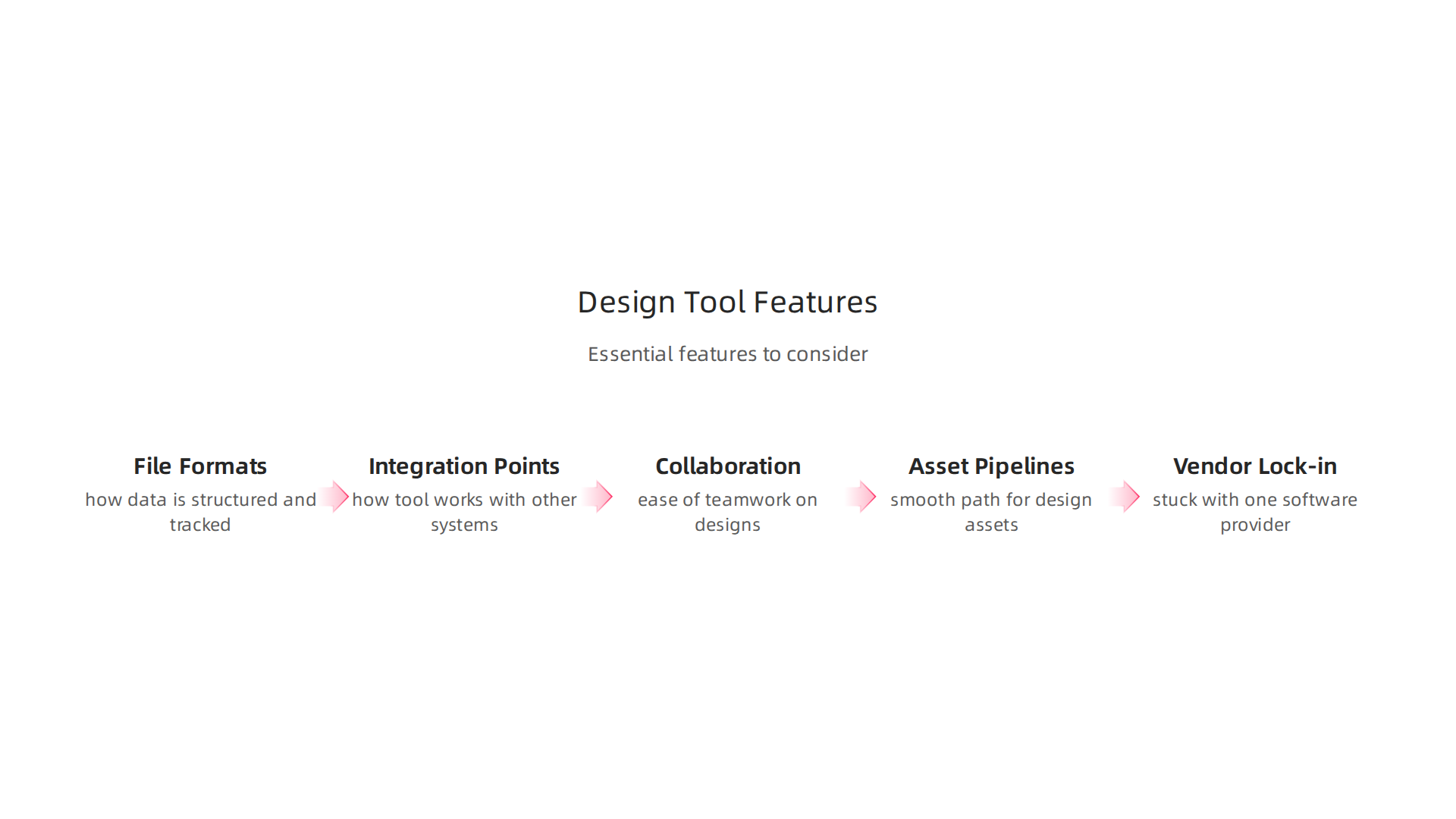
1. File Formats, Versioning, and Design Tokens
- File Formats: Not all design tools create files that other programs can easily use. For example, some tools use special file types that only work with that program. This can make it hard for engineers to get the information they need. Look for tools that allow easy export to common formats like SVG for icons or PNG/JPG for images.
- Versioning: Imagine making changes to a design, and then later realizing an older version was better. Good design and graphics software lets you keep track of all changes. This is called versioning. It’s like having a "save history" that lets you go back in time. This is super important for teams to avoid confusion and rework.
- Design Tokens: These are like small pieces of code that hold design rules. Think of them as variables for colors, fonts, spacing, and more. Instead of a designer saying "use dark blue," they might say "use brand primary color." Then, the engineering team knows that "brand primary color" is a specific dark blue, and if that color changes, it updates everywhere. Tools that use design tokens help everyone stay on the same page. The W3C Design Tokens Community Group is working to make these tokens a standard, showing how important they are for modern design workflows.
2. Integration Points: Design Systems, Pipelines, and Assets
How well a design tool works with other tools and systems is super important.
- Design Systems: A design system is like a rulebook and a collection of ready-to-use parts (like buttons, forms, and colors) that designers and engineers share. Tools that support design systems help keep your product’s look and feel consistent. As an example, Figma has a very strong position for managing design systems, according to a 2026 report on design systems.
- Design-to-Code Pipelines: This is a fancy way of saying how designs turn into actual code. Many new AI tools help with this, letting you export code from design. Some tools can turn designs into React, Vue, or HTML/CSS code, helping developers save time. These "design to code" tools are changing how engineering teams work by automating parts of the front-end development process. For instance, you can use AI to build impressive AI for presentations directly from design mockups.
- Asset Pipelines for CI/CD: When designers create images, icons, or other assets, engineers need to get them easily into the product. Good tools allow for easy export and optimization of these assets, which can then be fed into a "Continuous Integration/Continuous Deployment" (CI/CD) system. This means updates to designs and assets can quickly become part of the live product.
3. Collaboration Features: Commenting, Branching, Permissions, and Handoff
Teamwork is key. Design and graphics software should make it easy for everyone to work together.
- Commenting and Feedback: Can team members easily leave notes and discuss changes right on the design? This saves time compared to sending emails back and forth.
- Branching: For bigger projects, "branching" allows different people to work on different parts of a design at the same time without messing up each other’s work. Later, these separate parts can be brought together.
- Permissions: You might want certain people to only view designs, while others can edit them. Good tools let you control who can do what.
- Handoff Tools: This is about making it easy for designers to "hand off" their completed designs to engineers. These tools often provide all the details engineers need, like exact sizes, colors, and fonts, making the coding process smoother. This helps reduce errors and ensures the final product looks just like the design.
In 2026, many professionals are using AI tools to boost their workflows, with 51% of professional developers using AI tools daily according to one report, and a general 80% adoption of generative AI tools in software engineering activities across the board. Staying updated on these trends is vital for engineering teams.
Get clear daily AI updates from The Deep View Newsletter.
The AI Newsletter Worth Reading
Beyond understanding fancy design and graphics software, engineering teams in 2026 also need to know about no-code and low-code tools. These tools let you build apps and automate tasks without writing a lot of computer code, or sometimes, any code at all. They are changing how engineering work gets done by making it faster to build certain things.
No-code/low-code builders: capabilities, limits, and typical engineering use cases
No-code and low-code tools help many different types of teams. They are especially good for quickly building things that might not need complex code.
What No-Code/Low-Code Tools Can Do
These tools are great for different jobs:
- Internal Tools: Imagine your team needs a simple dashboard to track projects or an app for managing supplies. No-code tools like Bubble no-code app builder can help create these quickly. They are perfect for small apps that only your company uses to make work easier. Many teams use them for early ideas or to test things out fast, such as building quick internal tools or "Minimum Viable Products" (MVPs) for new ideas quickly to see if they work well.
- Customer-Facing Apps: For simple apps that customers use, no-code can be a good start. These apps are often not too fancy, but they get the job done. For example, a simple sign-up form or a basic information display.
- Automation: No-code tools can also connect different programs. Think of sending an email automatically when a new customer signs up. This is called automation, and it saves a lot of time. These tools let you move data between different systems without needing to write special code for each connection.
To learn more about how these platforms empower teams, check out our guide on empowering software teams with no code and low code platforms 2026.
The Limits of No-Code/Low-Code
While these tools are handy, they have some downsides, especially for bigger or more complicated projects.
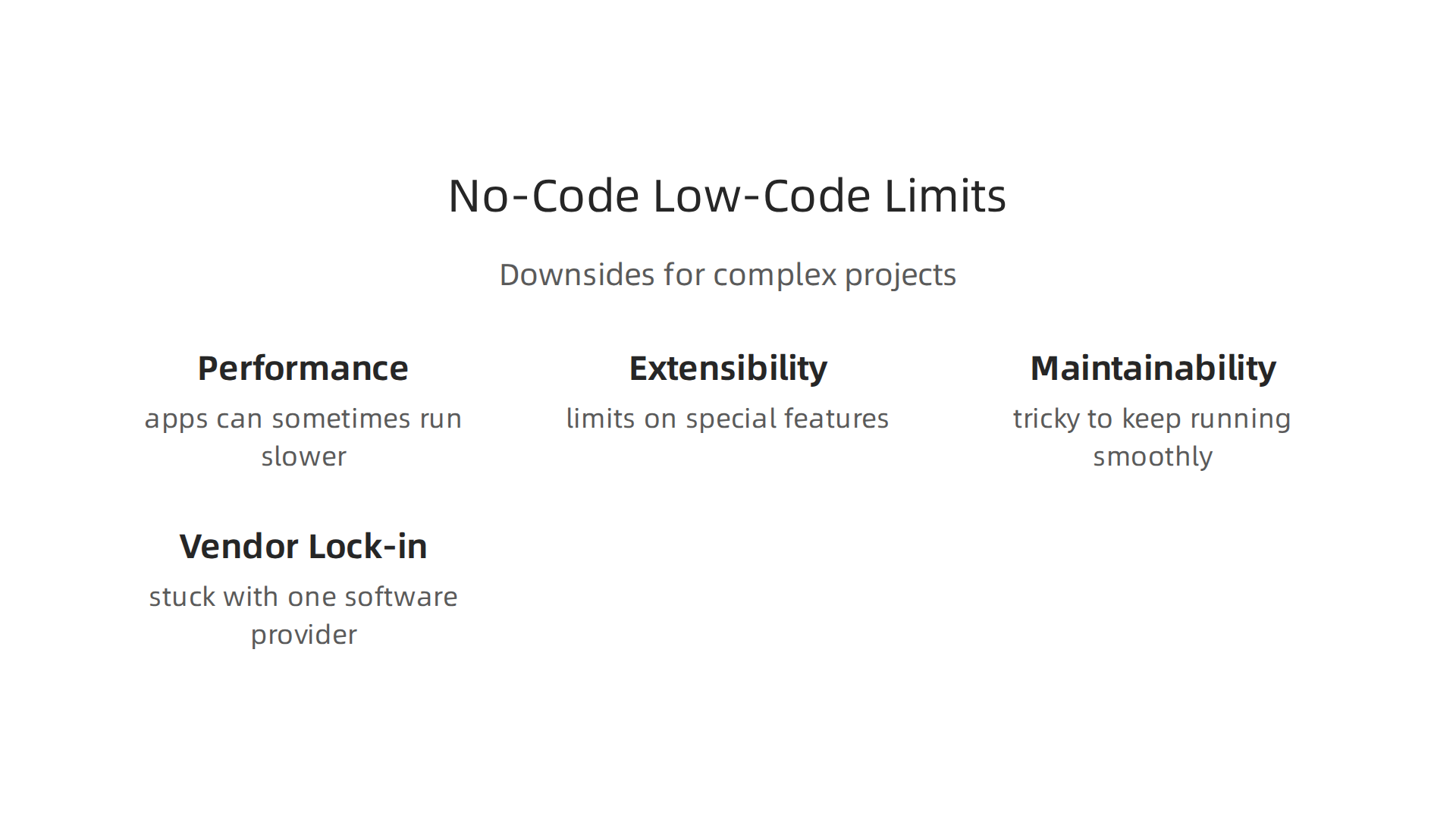
- Performance: Apps built with no-code tools can sometimes run slower than those made with traditional code. This slowness can get worse as the app grows or has many users. This is a common issue for no-code apps when they try to handle a lot of data or users, according to a low code no code platform comparison.
- Extensibility: This means how much you can change or add to the tool. No-code platforms often have limits. If you need a very special feature, you might not be able to build it with a no-code tool, which can become a big limitation of no-code app builders.
- Maintainability: Keeping no-code apps running smoothly can be tricky. It can be hard to understand exactly how the platform works behind the scenes, making it difficult to fix problems or make big changes later on.
- Vendor Lock-in: When you use a no-code tool, your app and its data live on that company’s platform. It can be difficult to move your app to a different platform later if you want to. This is called "vendor lock-in," and it can be a real worry for businesses. Some worry about how vendor dependency impacts flexibility.
When Engineers Should Use No-Code (or Not)
Engineers need to know when no-code tools are a help and when they are a hindrance.
- When to use no-code: No-code is great for small projects, testing new ideas, or building internal tools fast. It can help engineers deliver solutions quicker, especially when they need to solve a simple problem without spending days coding. These tools are very helpful for prototyping new ideas before dedicating a lot of engineering time to them.
- When to build with code: If you need a very fast app, one that can handle millions of users, or one with very special features, then writing code yourself is usually better. For complex tasks, like a new ai problem solver that needs custom AI programming, traditional coding gives you full control and power. For detailed advice, consider our no code development platform strategic guide for engineering teams 2026.
It’s all about picking the right tool for the job. No-code tools are powerful for some things, but they are not a replacement for traditional software engineering when complex or high-scale solutions are needed.
While no-code tools are great for quickly building simple apps or automating tasks, traditional software engineering still needs thoughtful ways to bring design ideas to life. This means getting the work done by those who create the look and feel of an app (designers) into the hands of those who build it (engineers). Bridging the gap between creative design and functional code is a big part of making great software in 2026.
Practical Ways to Blend Design and Code
Teams today use smart methods to make sure design and engineering work together smoothly. This often involves specific tools and ways of working.
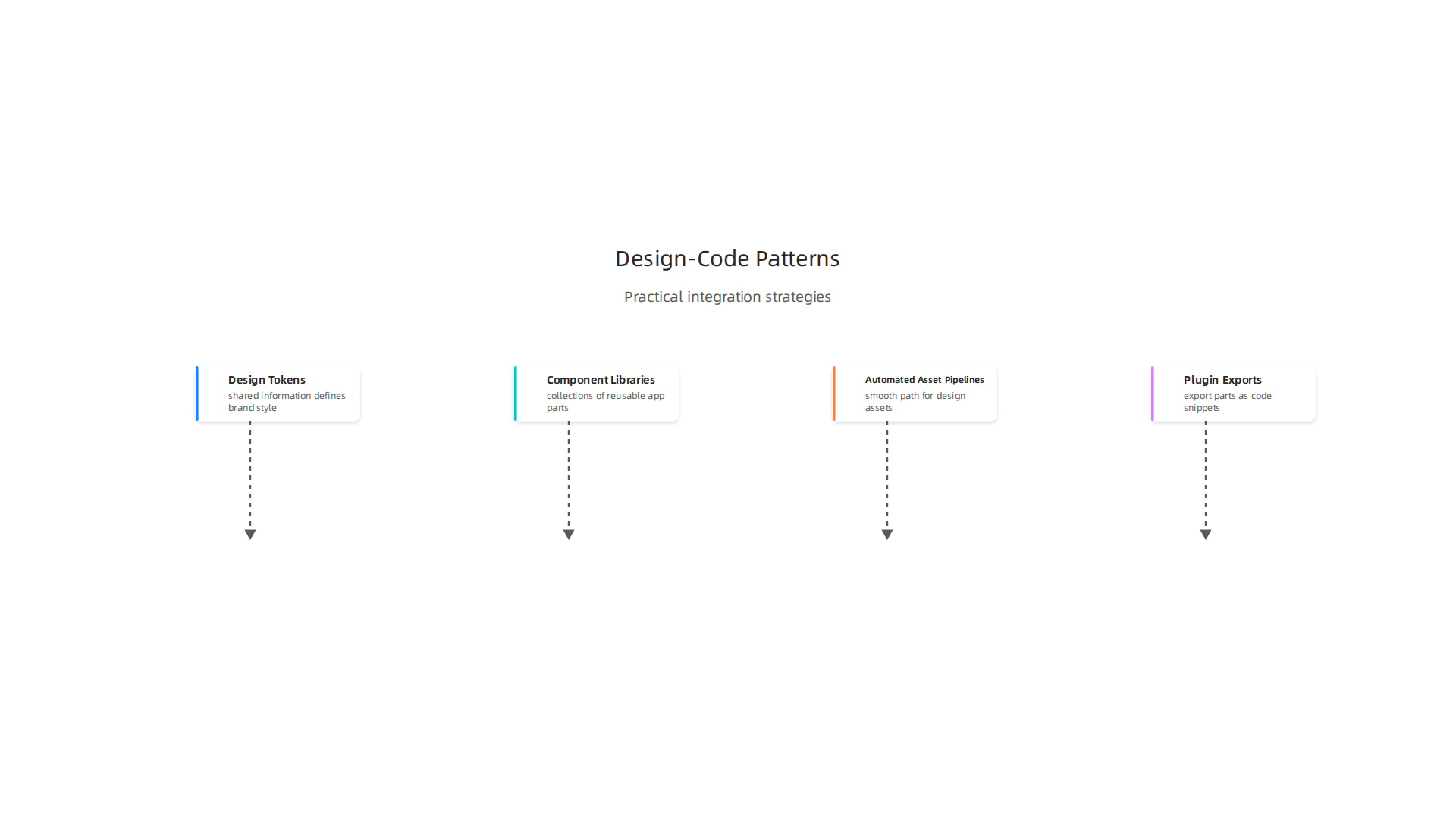
- Design Tokens: Think of these as tiny pieces of shared information that define your brand’s style. They can be colors, fonts, spacing, or sizes. Instead of a designer saying "use red #FF0000" and an engineer typing "#FF0000," they both use a "brand primary red" token. This makes sure everything looks the same everywhere. It also means if the brand color changes, you only update it in one spot.
- Component Libraries: These are collections of reusable parts of an app, like buttons, forms, or navigation bars. Designers create them, and engineers build them in code. Both teams use the same library, making sure apps are consistent and faster to build. For more insights on how these elements shape digital experiences, check out our guide on modern web development ecosystem 2026 navigating the future of digital building.
- Automated Asset Pipelines: This means setting up a smooth path for design assets, like icons or pictures, to go from the designer’s special design and graphics software straight into the engineer’s project. This can happen automatically when a designer saves their work, which saves time and lowers mistakes.
- Plugin-Driven Exports: Many design tools now have plugins. These are small helper programs that let designers export parts of their work directly as code snippets or ready-to-use assets for engineers. This speeds up the "hand-off" process. For example, some tools, like the Framer website builder balancing design speed and developer control, offer advanced export options.
Better Ways to Work Together
It’s not just about tools; it’s about how people work together.
- Linking Design Reviews to Issue Trackers: When designers show off new designs, their feedback or changes can be directly turned into tasks in the engineering team’s project tracker (like Jira or Trello). This way, nothing gets lost.
- Continuous Integration (CI): This is a practice where engineers often add their code changes to a main project. With design tools integrated, new visual changes or assets from designers can also be included in this process. It helps catch problems early if a design change breaks something in the code.
- Build-Time Asset Generation: Sometimes, design assets are not fully made until the software is being put together (built). This means the system can create different versions of an image or icon right when it’s needed, for different screen sizes or uses.
Knowing if It’s Working
How do you know if all these efforts are actually helping? You measure it.
- Track Velocity: This is how fast your team can get work done. If design tools are better integrated, engineers might finish tasks quicker.
- Rework: This measures how often something has to be redone. Less rework means better integration.
- Handoff Friction: This looks at how easy or hard it is for designers to give their work to engineers. If it’s smoother, teams save time and stress.
By using these patterns and keeping an eye on these numbers, teams can make sure their design and graphics software truly works hand-in-hand with their development process, creating better products faster.
To stay updated on how AI is changing everything from design tools to project management, make sure you get The AI Newsletter Worth Reading.
When choosing new tools, especially for creative work like design and graphics software, it’s super important to think about more than just what they can do. You need a checklist to make sure the software will work well for your team over a long time. This means looking at how you buy it, how safe it is, and if you can keep using it without problems later.
Procurement and Licensing
Before you even use a new piece of design and graphics software, you have to buy it. This involves understanding how the company sells its licenses.
- Seat vs. Enterprise: Will you buy one "seat" or license for each person, or a big "enterprise" package for everyone? This choice changes how much you pay and how many people can use the software. You need a clear process for buying software, which should include looking at pricing and contracts carefully in 2026 to ensure you’re getting a good deal and meeting all needs Software Procurement Checklist 2026: Complete 7-Step Guide.
- Add-on Costs: Sometimes, the main software is not the only cost. There might be extra tools or features you have to pay for later. Think about things like special fonts, extra storage, or powerful plugins. These add-ons can make the total cost much higher.
- Audit Considerations: Companies often check if you are using their software fairly. They want to make sure you have enough licenses for everyone. Keeping good records of all your software licenses is key to passing these checks Enterprise Software License Compliance Checklist 2026.
Security and Compliance
The safety of your data and how well your software follows rules are very important, especially when dealing with creative assets.
- Data Residency: Where does your data live? Some design and graphics software stores your files in the cloud. You need to know if that cloud storage is in your country or somewhere else. This matters for privacy rules and laws.
- Access Controls: Who can see and change your designs? Good software lets you control who has access. This means only the right people can work on important projects.
- Plugin Ecosystem Risk: Many design tools let you add extra mini-programs called plugins. While these can be helpful for things like making an ai for presentations or using an ai problem solver for complex design issues, they can also be a risk. If a plugin is not safe, it could open the door for bad things to happen to your data. Make sure to check the security of any vendors you work with, including those for plugins Secure Software Development: Vetting Tech Vendors Safely.
Maintainability
You want your design and graphics software to be easy to use and manage for a long time.
- Exportability and Backups: What happens if you want to switch to a different software or just save your work outside the tool? Can you easily get your designs out in a common format? Also, think about how you will back up your work. You don’t want to lose all your hard effort if something goes wrong. Some platforms can make it hard to export your data or workflows, which can be a problem The Perils of No-Code Platforms.
- Avoiding Vendor Lock-in: This is when you get stuck with one software provider because it’s too hard or costly to switch. For example, if you build an app with a bubble no-code app builder, you might find it hard to move your app to another platform later because you don’t own the source code No-Code App Builders vs Owning Your Code (2026). This also applies to design tools. Always look for tools that allow you to keep your options open. Many people worry about vendor lock-in with these types of tools, and often for good reason Mythbusting: “Vendor lock-in is a big problem”.
By carefully thinking about procurement, security, and how easy the software is to keep using, you can make smarter choices for your team’s design and graphics software needs in 2026. This helps avoid headaches down the road and keeps your projects running smoothly. If you’re looking for more general guidance on adopting new tools, you might want to read about how to evaluate technology services to prevent failures.
As you think about smart choices for your team’s design and graphics software, it is also important to look ahead. The world of design is always changing, and new tools are coming out all the time.

Right now, a big change is happening with Artificial Intelligence, or AI. These new AI tools are helping designers in amazing ways, and it is smart to know when and how to add them to your work.
Future-proofing: AI, Generative Design, and When to Rethink Your Toolset
The way we create designs is quickly changing thanks to new AI tools. These tools are not just little helpers; they are changing how we think about design itself.
Emerging Capabilities: AI-Assisted Design
Many new features are popping up in design and graphics software. These often use AI to make your work faster and better.
- AI-assisted design helps you with tasks like choosing colors, making layouts, or even suggesting design ideas. It is like having a super-fast assistant. For example, some AI can help you make an ai for presentations by putting slides together quickly or an ai problem solver for tricky design issues. Many designers now use AI to speed up their work, with reports showing significant time savings for creative teams in 2026 24 Generative AI Adoption Statistics for Creative Teams in 2026.
- Generative asset pipelines use AI to create new images, shapes, or textures from just a few words or ideas you type in. This means you can get many options for parts of your design without drawing each one yourself. For instance, generative AI is used by companies like Adobe Firefly to create new designs directly within tools like Photoshop 15 Generative AI use cases transforming every industry in 2026. The adoption of AI in graphic design is growing fast, with many designers already using these new tools AI Graphic Design Statistics 2026: Adoption & Workflow Data.
- Automated responsiveness is another big deal. AI can help make sure your designs look good on any screen size, whether it is a phone, a tablet, or a big computer monitor. This saves a lot of time because you do not have to change everything by hand for each size.
Decision Triggers: When to Change Your Tools
With all these new AI powers, you might wonder if it is time to switch your design and graphics software or add new ones. Here are some reasons to think about it:
- Big jump in speed: If a new tool can help your team finish projects much faster, it might be worth the change.
- Better quality work: If AI can help create designs that look more professional or unique, that is a good reason to look into it.
- Saving money: Sometimes, faster work or better quality can lead to saving money in the long run.
- Keeping up with competitors: If other teams are using AI to do things you cannot, you might need to catch up to stay competitive. When evaluating new AI platforms, it’s wise to consider how to evaluate and integrate generative AI platforms for developer teams.
You do not always have to switch completely. Sometimes, a "hybrid approach" works best, where you use your old tools for some things and new AI tools for others.
Tips for Pilot Programs and Measuring ROI
When you think about adding new AI features or design and graphics software, it is smart to test them first. This is called a "pilot program."
- Start small: Pick one project or a small team to try out the new tools. This helps you see how they work without changing everything at once.
- Set clear goals: Before you start, decide what you want the new tools to do. Do you want to save time? Make better designs? Create more content?
- Measure what matters: Keep track of how the new tools help you reach your goals. For example, measure how much time you save or if customers like the new designs more. This helps you see the "Return on Investment" (ROI), which means if the tools are worth the money and effort. In 2025, a study showed that many AI tests do not show clear returns, so it is important to measure well How Pixieset achieved 35% AI feature adoption by solving the right problem with Amazon Bedrock.
- Get feedback: Ask the people using the new tools what they think. Are they easy to use? Do they help? What problems do they cause?
By testing new tools carefully and seeing how they help, you can make smart decisions about bringing AI into your design work in 2026. This helps your team stay ahead and create amazing things.
For those keen to stay on top of the latest AI trends and advancements, consider subscribing to The AI Newsletter Worth Reading.
Summary
This article explains why modern engineering teams must understand design tools and no-code builders to stay fast and effective in 2026. It categorizes the main design and graphics software — from vector and raster editors to UI/UX, prototyping, motion, and 3D tools — and shows who on the team uses each. You’ll learn which technical features to evaluate (file formats, versioning, design tokens, and integration points), how to choose between generalist and specialist tools, and practical patterns for blending design and code such as component libraries, automated asset pipelines, and design-to-code exports. The piece also covers when no-code/low-code is appropriate versus when traditional coding is required, plus the procurement, security, and maintainability risks to watch for. Finally, it highlights how AI and generative design are changing workflows and gives a pragmatic approach to piloting new tools and measuring ROI so your team can adopt the right tools without breaking production.